System Architecture Blueprint | Deep-Dive Technical Guide | Verified Stable May 2026 Build
Cloud service economics have fundamentally decoupled from consumer value. What began as a cost-effective promise to offload local data preservation tasks has degraded into a fragmented landscape of escalating recurring subscription rates, unexpected platform modifications, and persistent privacy vulnerabilities. When a company can alter your service terms overnight or lock you out of your digital life due to an automated backend parsing error, relying entirely on public cloud configurations becomes a significant operational risk. The solution to escaping this architectural reliance is straightforward: establish your own self-hosted infrastructure on your own terms.
By shifting your core applications to a dedicated machine under your personal physical supervision, you reclaim absolute administrative control over your data assets. You can curate automated camera roll backup schedules, protect confidential document repositories, and host high-bitrate media streaming libraries without paying continuous access fees to third-party tech corporations. However, many technology enthusiasts hesitate to cross this line because they assume that deploying a reliable home server build requires allocating thousands of dollars for customized server racks, specialized power management frameworks, and noisy cooling configurations.
That assumption is completely outdated. In 2026, you can deploy a remarkably capable, whisper-quiet, and highly energy-efficient server environment for under $300. This complete self hosting guide bypasses the usual consumer marketing fluff to hand you an exact, step-by-step implementation blueprint. We will map out everything from sourcing high-value refurbished corporate hardware to installing bare-metal Linux operating systems, setting up container runtimes, and configuring production-ready instances of Jellyfin and Nextcloud.
1. Deconstructing the Single-Board Computer Trap: Why the Raspberry Pi Fails as a Real NAS
When engineering a budget-conscious local data center, the immediate instinct for many beginners is to reach for a single-board computer (SBC) like the Raspberry Pi 5. On paper, it looks like a bargain. The base circuit board carries a low retail price, consumes minimal power, and boasts a massive, supportive global enthusiast community. However, as anyone who has actually tried to scale an SBC into a robust, multi-user file management hub can tell you, this path quickly hits severe structural roadblocks.
The hidden pitfall of the single-board layout is the immediate accumulation of secondary component costs. By the time you buy an authenticated power delivery adapter, an enclosure that won’t cook the silicon under load, an active cooling system, and a stable PCIe-to-NVMe expansion hat to escape the high failure rates of standard microSD cards, your actual financial investment spikes well past $150. For that money, you are left stranded with a mobile-tier ARM system architecture, limited physical Input/Output options, and a complete lack of dedicated hardware-accelerated video transcoding pipelines.
This brings us to the ultimate raspberry pi nas alternative: off-lease enterprise mini PCs (often referred to as the 1-liter TinyMiniMicro form factor). Global corporate offices continuously cycle out hundreds of thousands of these compact desktop nodes every single year. Built by major manufacturers like Lenovo (ThinkCentre Tiny), HP (ProDesk/EliteDesk Mini), and Dell (OptiPlex Micro), these machines are engineered to operate continuously under professional business conditions. Sourcing one of these systems on the secondary market gives you a highly resilient x86-64 processing architecture, native PCIe expansion slots, multiple high-speed USB channels, and room for internal storage expansions—all for a lower out-of-pocket cost than a fully kitted out single-board experiment.
“Refurbished enterprise micro-nodes represent the sweet spot for modern home infrastructure. By reusing desktop silicon that features dedicated hardware decoding blocks, self-hosted environments secure immense performance advantages over low-power ARM architectures without increasing electrical overhead metrics.”
— Enterprise Lifecycle Sourcing Report | Strategic Reutilization Guidelines

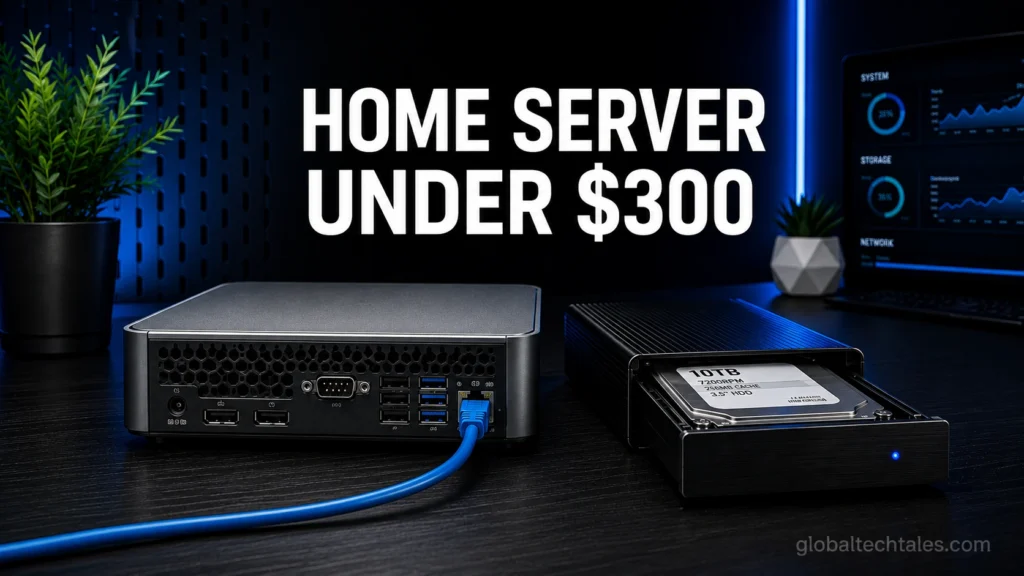
Figure 1: High-efficiency x86 enterprise mini-PC hardware used as a low-power server core.
2. Sourcing the Silicon: The Strategic $300 Bill of Materials
To keep our project budget strictly under our $300 limit while ensuring top-tier processing power, we split our money into two distinct categories: we buy our core processing hardware refurbished from the secondary market, and we buy our primary, high-density storage drives brand-new from major tech retailers. When hunting for our central node, we intentionally target systems powered by 8th-generation or 9th-generation Intel Core processors (such as the Intel Core i5-8500T or i5-9500T).
The engineering reason for choosing these specific generations is highly intentional: they feature the Intel UHD 630 graphics core, which includes Intel Quick Sync Video (QSV) technology. Quick Sync is a dedicated hardware core built onto the processor die designed solely to handle real-time video encoding and decoding pipelines. Because it uses specialized silicon logic, an 8th-gen micro-PC can transcode multiple high-bitrate 4K HDR movie streams concurrently while leaving the main CPU cores completely unburdened and free to run file synchronization, database tracking, and background container processes with zero performance hits.
| Hardware Component Group | Hardware Specification Selection | Sourcing Vector | Target Price |
|---|---|---|---|
| Core Compute Platform | Lenovo ThinkCentre M720q Tiny or HP ProDesk 400 G5 Mini (Intel Core i5-8500T, 16GB DDR4 RAM, 256GB NVMe SSD) | Secondary Outlets (eBay / Refurbished Distributors) | $115.00 |
| OS & App Database Storage | 256GB NVMe M.2 Solid-State Drive (Pre-installed inside the refurbished compute block) | Bundled in Hardware Purchase | $0.00 |
| Mass Storage Array Drive | 4TB Western Digital Red Plus or Seagate IronWolf NAS Internal 3.5″ Mechanical Drive (CMR Architecture) | Authorized Retail Channel (New) | $105.00 |
| Storage Interface Enclosure | USB 3.2 Gen 2 to SATA External 3.5″ Drive Enclosure with Dedicated External Power Supply & UASP Support | E-Commerce Direct Outlets | $25.00 |
| Physical Network Interface | Cat6 Shielded Copper Patch Cable (5-Foot Length) | Local / Existing Inventory Sourced | $8.00 |
| Total Hardware Infrastructure Expenditure: | $253.00 | ||
Sourcing your parts according to this budget chart leaves you with a comfortable financial cushion of roughly $47. This remaining cash can be saved as a backup fund, or deployed immediately to buy another identical 16GB memory stick to upgrade the server to a dual-channel 32GB RAM layout if you plan to launch complex, memory-hungry database tracking systems or local developer sandboxes later on.
3. Bare-Metal Linux Provisioning: Stripping Out the Desktop Clutter
Do not install a consumer desktop operating system environment on a machine designed to function as a dedicated server asset. Running a graphical user interface layer like Windows 11 Pro or user-facing macOS variants wastes critical system memory and consumes continuous processor cycles just to drive monitor pixels that will spend 99% of their life turned off in a closet. Just as we analyzed system degradation constraints in our comprehensive long-term performance operational matrix, minimizing underlying operating system overhead directly dictates the structural stability and longevity of your software stack.
Instead, our bare-metal deployment relies on a completely clean, headless installation of Ubuntu Server 24.04 LTS or a stable production deployment of Debian. This ensures that every single megabyte of system RAM and every clock cycle of your Intel processor are allocated directly toward running your background containers and computing workloads.
- Navigate your web browser directly to the official Ubuntu Server Distribution Portal and pull down the latest stable network installer ISO image container to your local machine workspace.
- Flash the downloaded installer ISO file onto a spare USB thumb drive using an image utility like BalenaEtcher or Rufus.
- Connect the flashed installer thumb drive along with a temporary test monitor and keyboard setup to the inputs of your refurbished micro-PC platform.
- Power on the micro-node frame and continuously tap your platform’s setup key (typically
F2,F12, orDEL) to step into the motherboard BIOS/UEFI configuration panel. - Inside the BIOS menus, locate your storage configuration toggles and ensure the controller is running in **AHCI Mode**. Turn off **Secure Boot** options to prevent driver conflicts with external components, configure the motherboard to automatically power back on after an electrical blackout, and set the USB drive as your primary boot choice.
Save your configuration adjustments and reboot the machine. Follow the installer instructions, choosing your preferred language options and selecting the standard base **Ubuntu Server** installation package rather than the minimized version. When configuring your network interface settings, make sure your Cat6 ethernet line is connected directly to your home router or network switch to establish a solid, hardwired local address node.
When you reach the storage file allocation panel, make sure to uncheck the automated option that says *“Set up this disk as an LVM group”*. Doing this removes unnecessary logical volume mapping layers and leaves you with simple, direct access paths to your physical drive partitions. Finally, when the system options menu prompts you, explicitly check the box to **”Install OpenSSH Server”**. Once the installation script wraps up and requests a system restart, you can pull out the USB flash drive and disconnect the monitor and keyboard completely. Moving forward, your server will operate completely headless, allowing you to securely execute command terminal inputs from any client machine on your home network.
Self-Hosted Infrastructure Storage Layout Mapping
Fast Storage Core (Internal NVMe)
Path: / and /var/lib/docker
Use Case: Host OS files, application runtimes, and relational database systems (MariaDB/Redis) requiring high random read/write input speeds.
Bulk Storage Pool (External SATA)
Path: /mnt/storage
Use Case: Houses massive data stores, high-bitrate Jellyfin movie directories, user Nextcloud document repositories, and cold automated backups.
4. Filesystem Architecture: Mounting and Mapping High-Capacity Storage Arrays
Now that your server platform is running cleanly, move the physical machine shell directly into its permanent home next to your central home router. From your main desktop workstation, open up a terminal window and establish a secure remote session to manage the server node using its assigned local network IP address:
ssh your_configured_username@your_server_local_ip_address
Before deploying our core applications, we need to map our external 4TB high-capacity drive to a predictable, permanent file path directory on the main operating system drive. Run a system scan to verify the raw partition string label assigned to your external USB storage enclosure assembly:
sudo fdisk -l
Locate your target bulk drive identifier label from the console logs (it will typically display as a string like /dev/sdb or /dev/sdc based on your active physical hardware configurations). Format the target disk cleanly using the high-performance Linux **ext4** filesystem engine:
sudo mkfs.ext4 /dev/sdb
Construct a dedicated storage directory root anchor point to serve as the long-term mount location for your user file data:
sudo mkdir -p /mnt/storage
To guarantee the hardware drive attaches to this exact filesystem path automatically whenever the machine boots, extract the unique hardware block string identifier (UUID) assigned to the drive assembly partition:
sudo blkid /dev/sdb
Copy the output alpha-numeric string wrapper isolated inside the quotes. Next, access your system-wide storage mount configuration document using the terminal-based text editor:
sudo nano /etc/fstab
Append a clean configuration string line matching the template below directly to the bottom of the open configuration document file workspace, substituting your extracted unique disk hardware identifier string accordingly:
UUID=your-copied-uuid-string-here /mnt/storage ext4 defaults,nofail 0 2
Save your configuration document edits and exit the active software process window panel. Mount the system paths explicitly using the standard mount instruction:
sudo mount -a
Organize structural system directories directly within your newly mounted high-capacity storage drive to keep runtime data separate from your media streaming files:
mkdir -p /mnt/storage/appdata
mkdir -p /mnt/storage/media/movies
mkdir -p /mnt/storage/media/tv
mkdir -p /mnt/storage/nextcloud/data
5. Container Environment Core: Docker and Permissions Deep Dive
Rather than compounding dependencies by installing application packages directly onto the bare metal file system, we isolate our services using container virtualization. This prevents system services from corrupting underlying libraries or conflicting over network communication ports. To establish a standardized, highly reproducible build space, we deploy the standalone Official Docker Container Core Engine alongside its processing plug-in, Docker Compose. Run the official automated deployment manifest from your terminal prompt:
curl -fsSL https://get.docker.com -o get-docker.sh
sudo sh get-docker.sh
To avoid requiring root execution rights via the sudo syntax modifier for every single container command launch, associate your primary administrator system user handle with the newly constructed structural Docker system execution tier:
sudo usermod -aG docker $USER
Log completely out of your remote terminal window session and sign back in to apply these new access rights across your connection profile.
Before drafting our app infrastructure layout, we must analyze an issue that causes 99% of self-hosted container deployment failures: **Linux file system permission conflicts**. By default, Docker containers often run internal application scripts as the privileged root user. When a container writes file logs or maps media assets onto your external storage drive, it secures those assets with root-only file permissions. Consequently, if you later try to modify, move, or clean up those files over a local network connection or directly from your terminal session, you will be met with persistent *“Permission Denied”* errors.
To completely avoid this problem, our configuration script forces our containers to match the exact User ID (`PUID`) and Group ID (`PGID`) of your main Linux system profile. Find your profile’s numerical identity strings by running the ID check command:
id
On standard Ubuntu deployments, your primary user profile will almost always output a value of `1000` for both the uid and gid strings. We will pass these exact numbers directly into our Docker environmental parameters to ensure that all configuration folders and files created by our apps remain completely under your personal ownership and control.
6. The Unified Infrastructure Stack: Full-Scale Docker Compose Architecture
Now, we will assemble our entire application stack inside a single, centralized docker-compose.yml file manifest. To ensure Nextcloud operates at peak performance on our budget-friendly hardware, we are expanding our stack to integrate a dedicated high-speed **Redis memory-caching engine** directly alongside our MariaDB relational database system.
Initialize a dedicated infrastructure directory configuration folder and open up a blank configuration file workspace:
mkdir -p ~/homeserver && cd ~/homeserver
nano docker-compose.yml
Paste the fully production-tuned operational code stack template straight into your open configuration document workspace:
version: "3.8"

services:
  # Jellyfin: Open Source Widescreen Streaming Core
  jellyfin:
    image: lscr.io/linuxserver/jellyfin:latest
    container_name: jellyfin
    environment:
      - PUID=1000
      - PGID=1000
      - TZ=Asia/Kolkata
    volumes:
      - /mnt/storage/appdata/jellyfin:/config
      - /mnt/storage/media:/data
    devices:
      # Exposes internal Intel hardware rendering blocks directly to enable QuickSync processing
      - /dev/dri/renderD128:/dev/dri/renderD128
      - /dev/dri/card0:/dev/dri/card0
    ports:
      - 8096:8096
    restart: unless-stopped

  # Redis: High-Speed In-Memory Transaction Caching Pipeline
  redis:
    image: redis:7-alpine
    container_name: nextcloud-redis
    command: redis-server --requirepass secure_redis_token_string_here
    restart: unless-stopped

  # MariaDB: Structured Relational Database Engine
  nextcloud-db:
    image: mariadb:10.11
    container_name: nextcloud-db
    command: --transaction-isolation=READ-COMMITTED --log-bin=binlog --binlog-format=ROW
    volumes:
      - /mnt/storage/appdata/nextcloud-db:/var/lib/mysql
    environment:
      - MYSQL_ROOT_PASSWORD=complex_root_db_pass
      - MYSQL_PASSWORD=secure_nextcloud_db_user_pass
      - MYSQL_DATABASE=nextcloud
      - MYSQL_USER=nextcloud
    restart: unless-stopped

  # Nextcloud: Distributed Private Workspace Secure Infrastructure
  nextcloud:
    image: nextcloud:latest
    container_name: nextcloud
    ports:
      - 8080:80
    depends_on:
      - nextcloud-db
      - redis
    volumes:
      - /mnt/storage/nextcloud/data:/var/www/html/data
      - /mnt/storage/appdata/nextcloud-config:/var/www/html
    environment:
      - MYSQL_HOST=nextcloud-db
      - MYSQL_DATABASE=nextcloud
      - MYSQL_USER=nextcloud
      - MYSQL_PASSWORD=secure_nextcloud_db_user_pass
      - REDIS_HOST=redis
      - REDIS_HOST_PASSWORD=secure_redis_token_string_here
    restart: unless-stopped
Save and close the workspace configuration document. Fire up the server build array using the standard detached production orchestrator deployment command:
docker compose up -d
7. Nextcloud Optimization: Injecting Memory Cache Layers to Eliminate Interface Lag
Out of the box, standard Nextcloud installations run notoriously sluggishly on modest hardware platforms. Every single time you click a folder path, preview a local image thumbnail, or browse through sync directories, Nextcloud is forced to execute a heavy SQL call to retrieve metadata from your mechanical storage drive. This can lead to a frustrating desktop user experience filled with noticeable interface loading lag.
We solve this issue completely by injecting our **Redis memory cache configuration** directly into the core Nextcloud environment. Because Redis holds your application path index values inside volatile system memory (RAM), files resolve instantly without triggering mechanical drive seek delays. To complete this performance tune, open your site config file workspace:
sudo nano /mnt/storage/appdata/nextcloud-config/config/config.php
Locate the central configuration array block and add these precise structural optimization variables directly into the document profile matrix:
  'memcache.local' => '\\OC\\Memcache\\APCu',
  'memcache.distributed' => '\\OC\\Memcache\\Redis',
  'memcache.locking' => '\\OC\\Memcache\\Redis',
  'redis' =>
  array (
    'host' => 'redis',
    'port' => 6379,
    'password' => 'secure_redis_token_string_here',
    'timeout' => 1.5,
  ),
Save your config file changes and exit the text editor window. Restart your application container stack to instantly load the optimization parameters across your workspace:
docker compose restart
Open a web browser on any home client device, type in your server IP address pointing to port `8080` (e.g., http://192.168.1.150:8080), create your primary administrator user credentials, and follow the setup path. You will find that your private cloud file interface responds with absolute fluidity, navigating massive nested directories with zero loading delays.
8. Media Engine Initialization: Accelerating Jellyfin 4K Transcoding Layouts
With cloud storage running smoothly, let’s configure your high-performance, private video library engine. Open a new web browser tab pointing directly to your server’s assigned media streaming port node at `8096` (e.g., http://192.168.1.150:8096). Complete the initial layout wizard to establish your media profiles and account access keys.
To confirm that your low-power server platform can stream movies seamlessly to older smartphones, streaming sticks, or remote browsers without locking up your system, you must turn on hardware acceleration inside the app. Navigate through the admin interface to **Dashboard ➔ Playback ➔ Transcoding**. Under the dropdown menu selection labeled **Hardware Acceleration**, replace the default option *None* with **Intel QuickSync Video (QSV)**.
Scroll down to the detailed capabilities check list box array, check the boxes for high-efficiency modern codecs including **H264, HEVC, MPEG4, and AV1 decoding configurations**, and select the option for **Enable Hardware Tone Mapping**. Hardware tone mapping ensures that if you watch a high-contrast 4K HDR movie on an older screen that only supports standard definition (SDR), your server’s graphics chip automatically converts the color profiles in real-time, preventing the video from looking washed out.

Figure 2: Real-time resource tracking during active hardware-accelerated video decoding tasks.
To test your configuration, open a movie stream on an external client device, manually force the playback resolution down to a lower quality tier to trigger a server-side transcode, and launch the real-time resource monitor inside your server’s remote SSH terminal session:
htop
Look closely at your core processing meters. Your overall CPU core utilization metrics will hover comfortably below 15%. This proves that your Intel Quick Sync hardware core has successfully taken ownership of the video translation task, keeping the rest of your server’s resources completely free to process other network requests without breaking a sweat.
9. Eliminating Global Exposure Risks: Implementing Private Mesh Networks
Having a secure, personal cloud ecosystem loses much of its utility if you can only access your files while sitting inside your home living room. However, classical methods for opening up remote connections—such as logging into your home router, setting up complex port forwarding rules, and opening port doors directly to the public web—exposes your server to constant script-bot vulnerability scans and malicious network attacks.
The modern, enterprise-secure method to handle remote access is to deploy an encrypted **private mesh virtual network layer**, like Tailscale. Tailscale handles secure, point-to-point WireGuard communication tunnels between your mobile devices, remote laptops, and home server core without requiring you to open external firewall ports or fiddle with confusing DNS mapping records on your router.
This means your devices can securely synchronize data to Nextcloud or stream high-definition movies via Jellyfin from anywhere in the world, while your physical server machine remains completely invisible to open public web trackers. Your private data stays entirely on your own storage hardware, protected from outside threats, right where it belongs.
10. Frequently Asked Questions (FAQ)
Q1: Why is an old corporate mini PC better than a brand new Raspberry Pi 5 for self-hosting?
Refurbished corporate mini PCs use robust x86 architecture and feature dedicated Intel Quick Sync hardware processing blocks. This allows them to effortlessly stream and transcode high-resolution video files. Additionally, their high-speed internal storage connections pass data significantly faster than single-board computer layouts, giving you a far more stable and scalable system for a lower total investment once all necessary components are factored in.
Q2: What happens to my home server build if my house experiences an unexpected power outage?
By modifying your motherboard’s system settings in the BIOS to automatically power back on after an electrical blackout, your server will safely boot itself right back up once power is restored. Our storage drive mount configuration file uses the nofail option parameter, which prevents the Linux operating system from freezing if a storage enclosure takes a few extra seconds to spin up and report its hardware state during a system reboot.
Q3: Can I expand this $300 home server setup to store more data later on?
Absolutely. Because we deployed our services using isolated container virtualization via Docker, our applications are completely decoupled from the physical storage hardware. If you run out of disk space down the line, you can simply plug in a secondary external drive enclosure, format it to ext4, and mount it as an additional folder path inside your central docker-compose.yml file without having to reinstall your apps or reconfigure your user accounts.
Q4: Is a single-drive home server safe against data loss?
To keep this initial build under a strict $300 budget, we maximize our storage capacity using a single high-density 4TB drive. While this is an exceptional jumping-off point for home hosting, no single drive is completely immune to physical hardware wear over time. You should always use your leftover budget cash to set up an automated, encrypted offsite backup task using tools like Duplicati or Rclone to back up your most critical database files and personal documents to an external backup target.
Stop renting your digital infrastructure. Sourcing efficient refurbished hardware and setting up direct container systems allows you to build a powerful, private cloud data ecosystem that outperforms expensive commercial configurations while protecting your digital sovereignty for years to come!
Looking to add local intelligence to your sovereign data node? Read our step-by-step guide on setting up a 24/7 Local AI Agent Home Server with Ollama.