
Updated: July 1, 2026 | Author: Anshuman Vikram Singh | Reading Time: 18 minutes
Few technical anomalies match the frustration of watching a high-speed internet connection completely evaporate the moment you cross a residential threshold. One minute you are streaming high-bitrate media files seamlessly, and the next, your device is stuck in an endless loop of dropped data packets, latency spikes, and connection timeouts. If you are tracking down the structural and environmental causes behind this systemic bottleneck, you are fundamentally asking: why does Wi-Fi drop in certain rooms while performing flawlessly just a few feet away? The answer does not lie in arbitrary software glitches, but in the rigid laws of radiofrequency (RF) physics, spatial layout constraints, non-line-of-sight limitations, and invisible localized interference dynamics that govern residential architectural spaces.
The Core RF Diagnostic Framework
Before investing in expensive hardware replacements, an engineering approach requires identifying the exact degradation mechanism at play. Wireless signal dropouts are typically categorized into three distinct failure modes:
- Free-Space Path Loss & Attenuation: Natural signal degradation caused by physical distance and the density of building materials blocking the wave trajectory.
- Electromagnetic & Co-Channel Contention: Active frequency pollution from household consumer electronics, appliance leakage, or overlapping networks utilizing identical channels.
- Client-Side Multi-Path Fading: Intrinsic software thresholds where a client device actively drops a weak connection rather than sustaining low-throughput data frames.
To accurately diagnose why does Wi-Fi drop in certain rooms, we must visualize our home network not as a uniform cloud, but as a cluster of high-frequency light waves broadcasting outward from a central point source. These invisible waves bounce, refract, scatter, and absorb based on the physical properties of every object they encounter. When a residential floor plan forces these radio waves to fight through high-density barriers or contend with competing electromagnetic fields, packet delivery drops significantly, forcing your device’s operating system to terminate the wireless link completely.
1. The Radio Frequency Physics of Signal Propagation
Modern wireless routers transmit data across three primary frequency bands: 2.4 GHz, 5 GHz, and the newer 6 GHz spectrum utilized by Wi-Fi 6E and Wi-Fi 7 standards. Each of these bands operates on a fundamental law of wave physics: the higher the frequency of a radio wave, the shorter its physical wavelength. Shorter wavelengths can carry vastly larger amounts of binary data over a short period, but they lack the physical momentum required to pass through dense matter without losing energy.
This reality explains a common observation when analyzing why does Wi-Fi drop in certain rooms: your device might show a stable, low-speed link on the 2.4 GHz band but continually drops whenever it attempts to negotiate a faster 5 GHz connection in a rear room. The 5 GHz wave is physically small and easily stopped by structural obstacles, while the longer 2.4 GHz wave sweeps around corners and passes through standard interior walls with relative ease. However, because the 2.4 GHz band is narrow, slow, and highly congested, it frequently succumbs to data timeouts that look exactly like a total signal drop.

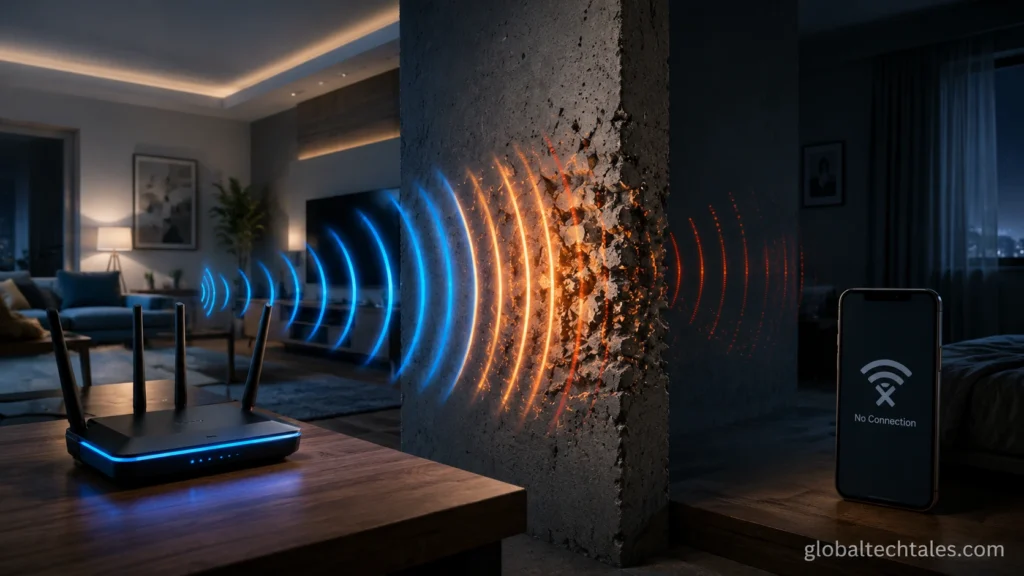
Figure 1: High-frequency RF wave propagation behaviors through residential layouts and structural walls.
Furthermore, as radio waves travel away from your router antennas, their power dissipates according to the inverse-square law. In a completely open field, doubling the distance from the router reduces the signal strength to one-fourth of its original value. When you introduce the complex layout of a standard house, this natural dissipation combined with physical obstruction creates deep “RF dead zones,” leaving users confused as to why does Wi-Fi drop in certain rooms while remaining perfectly functional in an adjacent hallway or entryway.
2. The Structural Wall of Death: Material Attenuation Coefficients
Every single material inside a building absorbs a portion of the energy from passing radio waves. This drop in signal power is measured in decibels (dB). A 3 dB drop cuts your total signal power exactly in half, while a 10 dB drop eliminates 90% of your wireless power. Understanding these material coefficients is the single biggest step toward solving why does Wi-Fi drop in certain rooms.
Standard interior drywall and hollow wooden doors are highly transparent to radio waves, typically causing a negligible loss of only 1 dB to 3 dB. However, structural support elements tell a completely different story. Solid poured concrete, masonry blocks, and brick retaining walls are dense and packed with mineral moisture. A single standard concrete wall can drop wireless signal power by 12 dB to 22 dB, effectively killing any high-frequency 5 GHz or 6 GHz communication instantly.
Worse than concrete, however, are metals and highly reflective surfaces. This reflective property is a primary culprit for why does Wi-Fi drop in certain rooms like bathrooms, walk-in closets, or bedrooms fitted with large sliding wardrobe mirrors. Glass mirrors rely on a thin, solid metallic backing layer of silver or aluminum to reflect light waves. Because metal is an outstanding electrical conductor, it acts as an absolute electromagnetic shield. It reflects the radio signals directly back toward the source room, creating a literal wireless shadow zone on the opposite side of that wall surface.
Older historic residences feature an equally challenging structural obstacle hidden right inside their plaster wall partitions: plaster-and-lath construction. Before drywall panels became industry standard, interior walls were constructed by smoothing thick layers of plaster over a dense grid of thin wooden strips (laths) or, quite frequently, a heavy wire mesh framework. This internal wire mesh matrix acts exactly like a Faraday cage, blocking wireless signals from entering or exiting the room and making it nearly impossible to maintain a stable internet link without physical infrastructure updates.
3. Invisible Pollution: Electromagnetic and Co-Channel Interference
Even if your home features open archways and thin drywall partitions, you can still experience major drops in connection stability. When looking into the root causes explaining why does Wi-Fi drop in certain rooms like kitchens, utility spaces, or home offices packed with active hardware, the root cause is often active electromagnetic pollution generated by everyday electronic appliances.
The consumer 2.4 GHz frequency band is a chaotic, unregulated airspace. Standard residential microwave ovens operate by using a high-power magnetron to pump raw 2.45 GHz radiation through food items. While microwave enclosures are heavily shielded to block this radiation, small amounts of electromagnetic noise routinely leak into the surrounding environment during operation. This burst of noise completely blows past local 2.4 GHz network traffic, causing severe packet drops and explaining why does Wi-Fi drop in certain rooms the moment someone starts heating up food.
“Radio frequency interference is not limited to competing data networks. Unintentional radiators—including faulty power bricks, poorly shielded appliances, and legacy consumer hardware—frequently emit broadband noise that can instantly drop the signal-to-noise ratio of local wireless receivers to zero.”
— Federal Communications Commission (FCC) Technical Bulletin
Beyond kitchen appliances, competing wireless protocols like Bluetooth peripherals, wireless baby monitors, IoT smart infrastructure, and legacy cordless home phones all crowd identical frequency channels. If you have crowded a specific room with wireless smart bulbs, security cameras, and wireless speakers, the local noise floor rises significantly. When the background noise matches or exceeds the power of the signal coming from your primary router, your client hardware can no longer read the incoming data frames, causing immediate network drops.
4. Geometric Inefficiencies: Diagonal Obstruction Angles and Multipath Fading
Many homeowners position their main wireless router based purely on where the main internet service cable enters the house, which often means tucking it away in a basement corner, utility closet, or on a far exterior window ledge. This setup introduces a severe geometric issue known as the *incidental angle of absorption*, which explains why does Wi-Fi drop in certain rooms located diagonally across the residential layout.
If you stand directly in front of an interior partition wall, a radio wave traveling straight through only has to pass through roughly 4 inches of drywall. However, if your router is positioned on a completely different floor or deep in a remote corner, the signal must travel through that exact same wall at a sharp diagonal angle. This diagonal trajectory forces the radio wave to pass through several feet of solid internal material rather than a few clear inches, multiplying the signal attenuation effect and severely degrading connection speeds.

Figure 2: Spatial layouts and diagonal wall trajectories that dramatically compound radio wave absorption.
This layout issue is further complicated by *multipath fading*. When an omnidirectional antenna broadcasts a signal, the radio waves scatter across the room, bouncing off metal beams, concrete ceilings, and filing cabinets. The client device in the target room receives both the direct signal wave and multiple reflected waves fractions of a millisecond later. If these reflected waves arrive out of phase, they cause destructive interference, leaving you wondering why does Wi-Fi drop in certain rooms that seem to have a clear line of sight.
5. Client-Side Software Rules and Energy Bottlenecks
Often, a sudden network drop isn’t caused by the router failing to broadcast, but by the connected device deciding to drop the link. Operating systems like Windows, iOS, and Android use specific algorithms to determine when to stick to a wireless network and when to scan for a better option. This behavior is heavily influenced by the device’s internal power states and roaming aggressiveness rules.
When your smartphone or laptop drops down to a low power state or enables battery saver mode, it limits the electrical current flowing to its internal network interface card (NIC). This reduction in power lowers the sensitivity of the internal antennas, making it significantly harder for the device to pick up weak signals. Tracking down these sudden power-saving disconnections requires the same level of logical isolation needed when analyzing why your laptop is charging slowly on USB-C; you must determine whether the underlying bottleneck is caused by a hardware limitation or an aggressive power-management profile.
Further, when a device is forced to operate at the absolute edge of a router’s range, packet corruption levels spike dramatically. To make sure that transmitted data matches the original source file exactly, network protocols rely on mathematical verification systems. This is conceptually similar to how distributed data frameworks implement sliding window cryptographic hashes to keep data packets perfectly sequenced and verified across insecure connections. When a weak wireless signal causes too many packet validation errors in a row, the client device terminates the connection entirely to prevent data corruption, resulting in a sudden drop.
6. Advanced Home Network Engineering: Resolving Large Layout Bottlenecks
Fixing wireless issues goes beyond simply asking why does Wi-Fi drop in certain rooms. If your layout requires a complex setup to span multiple floors or dense walls, a single consumer-grade router will rarely be able to cover the entire space cleanly. To fix persistent dropouts across a larger area, you must shift away from basic extenders and look into advanced, distributed network topologies.
Cheap wireless range extenders often worsen connection issues because they simply pick up a weak, degraded wireless signal and rebroadcast it on a separate network name, cutting your available bandwidth in half. A professional approach requires deploying a unified mesh network or running hardwired wireless Access Points (APs) connected back to a central switch via Cat6 ethernet cables.
Managing these distributed multi-node access networks effectively shares identical logical principles with modern enterprise cloud software setups. For example, systems that rely on a stateless MCP agent architecture leverage intelligent, independent nodes to manage data routing seamlessly without requiring a central authority to constantly rebuild connection states. In a home mesh network, this approach allows your client device to transition smoothly between different physical access nodes as you move between rooms, keeping your connection stable and eliminating dropped signals.
Building out a rock-solid, hardwired home network backhaul is also an essential foundational step if you plan to follow our comprehensive blueprint on how to build a home server under $300. High-throughput local operations—like streaming uncompressed media files, managing automated security camera storage, or accessing remote network backups—will quickly fail if your local wireless connection drops out due to wall attenuation or channel interference.
To accurately measure your network performance across different rooms, avoid relying on basic internet speed tests, which only measure your external connection speed. Instead, look at your actual hardware connection statistics. Network engineering documentation from the Institute of Electrical and Electronics Engineers (IEEE) outlines that consumer Wi-Fi devices need a Received Signal Strength Indicator (RSSI) score between -30 dBm and -67 dBm to support high-speed data transfers. Once that score drops past -80 dBm, the physical connection becomes highly unstable, explaining exactly why does Wi-Fi drop in certain rooms.
7. Complete Step-by-Step Fix to Reclaim Your Connection
If you are ready to eliminate dead zones and ensure a stable, uninterrupted connection across your entire house, follow this structured troubleshooting workflow:
Step 1: Map Out Your Local Signal Strength
Download a free software utility like NetSpot, Wi-Fi Analyzer, or Airport Utility onto your mobile device or laptop. Walk into the problematic room and measure the exact RSSI value in decibels (dBm). If the value reads between -75 dBm and -90 dBm, your device is dropping the connection simply because the router is too far away or blocked by too many walls. If your signal reading is strong (e.g., -55 dBm) but your connection still drops unexpectedly, your issue is being caused by localized frequency interference rather than range limitations.
Step 2: Optimize Router Placement and Clearance
Move your router out of enclosed TV cabinets, closets, or floor-level positions. Place the router as centrally as possible in your home, ideally elevated on a shelf or wall mount. Ensure that the antennas are pointed completely straight up vertically to optimize horizontal wave propagation, and verify that there are no major metal objects, large mirrors, or heavy electronic appliances within a 5-foot clear radius around the device.
Step 3: Audit and Switch Overlapping Wireless Channels
Open a web browser on a device connected to your network, type your router’s local IP gateway address (typically 192.168.1.1 or 192.168.0.1), and log into the admin console. Locate the wireless radio frequency settings page. For your 2.4 GHz network, change the channel selection from “Auto” to fixed channels **1, 6, or 11**. These are the only three channels in the 2.4 GHz spectrum that do not overlap with one another. For your 5 GHz network, select non-DFS channels like **36, 40, 44, or 48** to avoid sudden dropouts caused by local radar detection interference.
Pro-Tip: Separate Your Wi-Fi SSIDs
Many modern routers combine both the 2.4 GHz and 5 GHz networks under a single network name (SSID). When you walk into a distant room, your device will often get stuck trying to stay connected to a weak 5 GHz signal instead of switching over to the stronger 2.4 GHz connection. Go into your router’s advanced wireless settings and uncheck “Smart Connect” or “Band Steering.” Give each network its own distinct name, such as GlobalTechTales_2.4G and GlobalTechTales_5G. This allows you to manually force your device to use the long-range 2.4 GHz band whenever you are working in distant rooms.
Step 4: Update Device Roaming Sensitivity
If you are experiencing random connection drops on a Windows laptop, open the **Device Manager**, expand the **Network Adapters** section, and right-click on your wireless network card to open its **Properties**. Navigate over to the **Advanced** tab, scroll down to find **Roaming Aggressiveness** (or Roaming Sensitivity), and lower its value from *Highest* down to *Medium* or *Medium-Low*. This adjustment stops your laptop from constantly dropping its current connection to hunt for a slightly better signal whenever you move around the room.
Understanding the exact physical barriers and wireless channel conflicts in your home helps you accurately resolve network dropouts without wasting money on unnecessary hardware upgrades. By adjusting your router’s physical position, managing your network’s broadcast channels, and tuning your device’s connection rules, you can easily turn unstable dead zones into highly reliable, high-speed wireless spaces.